
Up to eight references
Nano Banana models take up to eight images; GPT Image models take four.
GPT Image 2 is live — sharper edits, cleaner text, up to 4K
Upload a picture and prompt the change — restyle, re-light, extend, or composite into something new.
Avoid copyrighted characters, logos, music and sensitive or explicit content — it may be blocked.
Estimated cost: 3 credits
Your creation appears here
Pick a model, describe the shot, and hit Generate.
Why Image to Image AI
Image to image changes the picture you already have, instead of starting from a blank canvas.
Nano Banana models take up to eight images; GPT Image models take four.
References anchor identity while the rest changes.
Describe the change and run it.
Export edits at print-ready size.
Image to image guide
Image to image starts from pictures you upload and changes them according to your prompt. It covers restyling, background swaps, product reshoots, extending a scene, and combining several images. This page explains how to prepare references and describe changes.
Typical edits include style transfer, background and lighting changes, seasonal variants, outpainting, and multi-image compositing. The Nano Banana models accept up to eight reference images and the GPT Image models up to four. Results export at up to 4K.
Describe only what should change, and say what must stay. "Keep the bottle and label exactly as they are, place it on a sunlit kitchen counter" tells the model what to preserve. When you upload several images, assign each a role: product, scene, palette, or style.
Change one variable at a time. If an edit is nearly right, repeat the request with a single correction rather than rewriting everything.
State what must remain unchanged.
Describe the new scene, style, or light.
Say what each reference contributes.
Use sharp, well-lit images with the subject clearly visible. Avoid mixing references that disagree on perspective or lighting, since the model has to reconcile them. For the strongest subject fidelity, supply one or two clean views of the product or person.
How to use Image to Image AI
Add one or more sharp references.
Who uses Image to Image AI
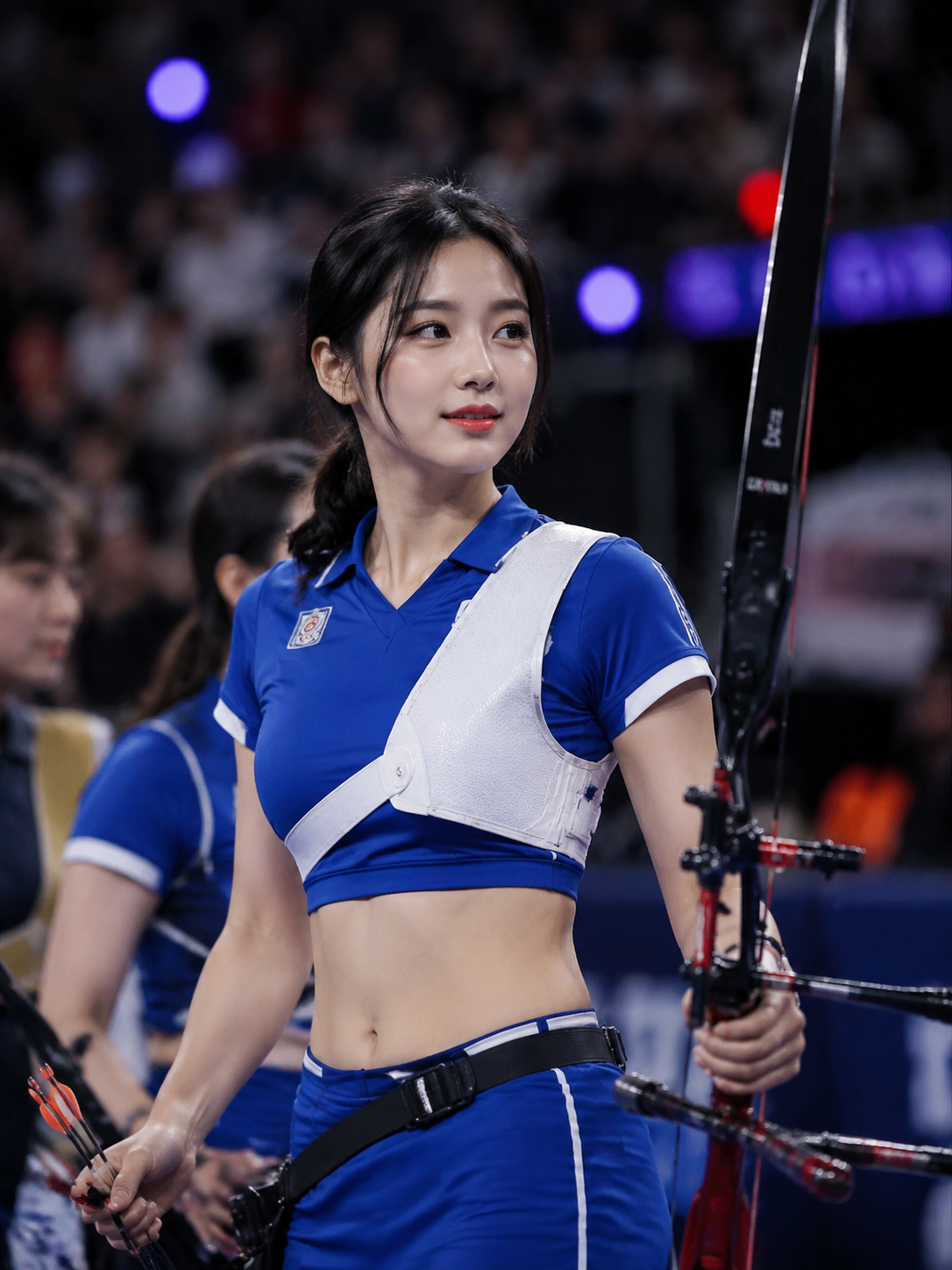
Background and lighting changes without masking.
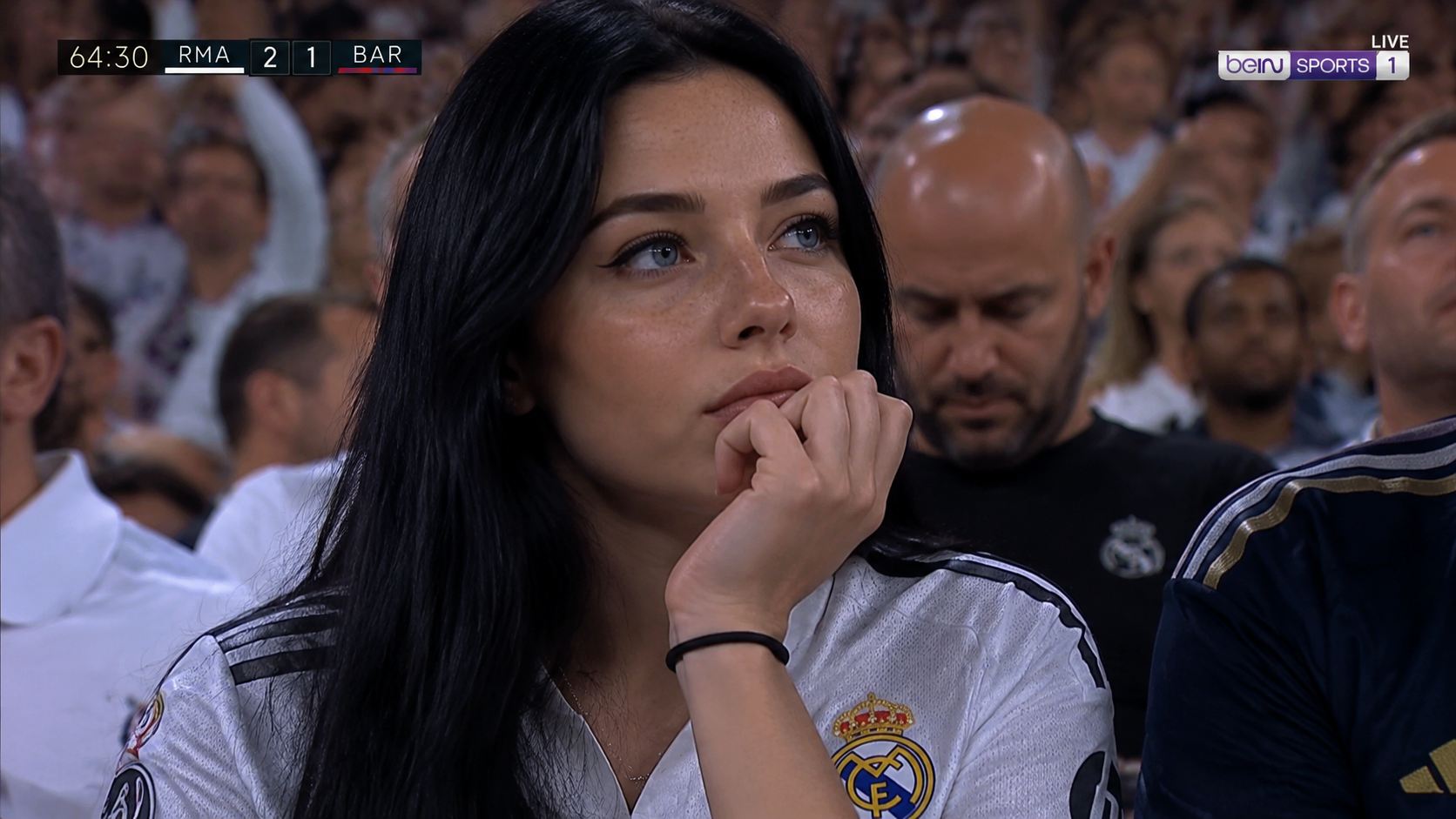
Adapt one image for many placements.
Reshoot catalog photos in new scenes.
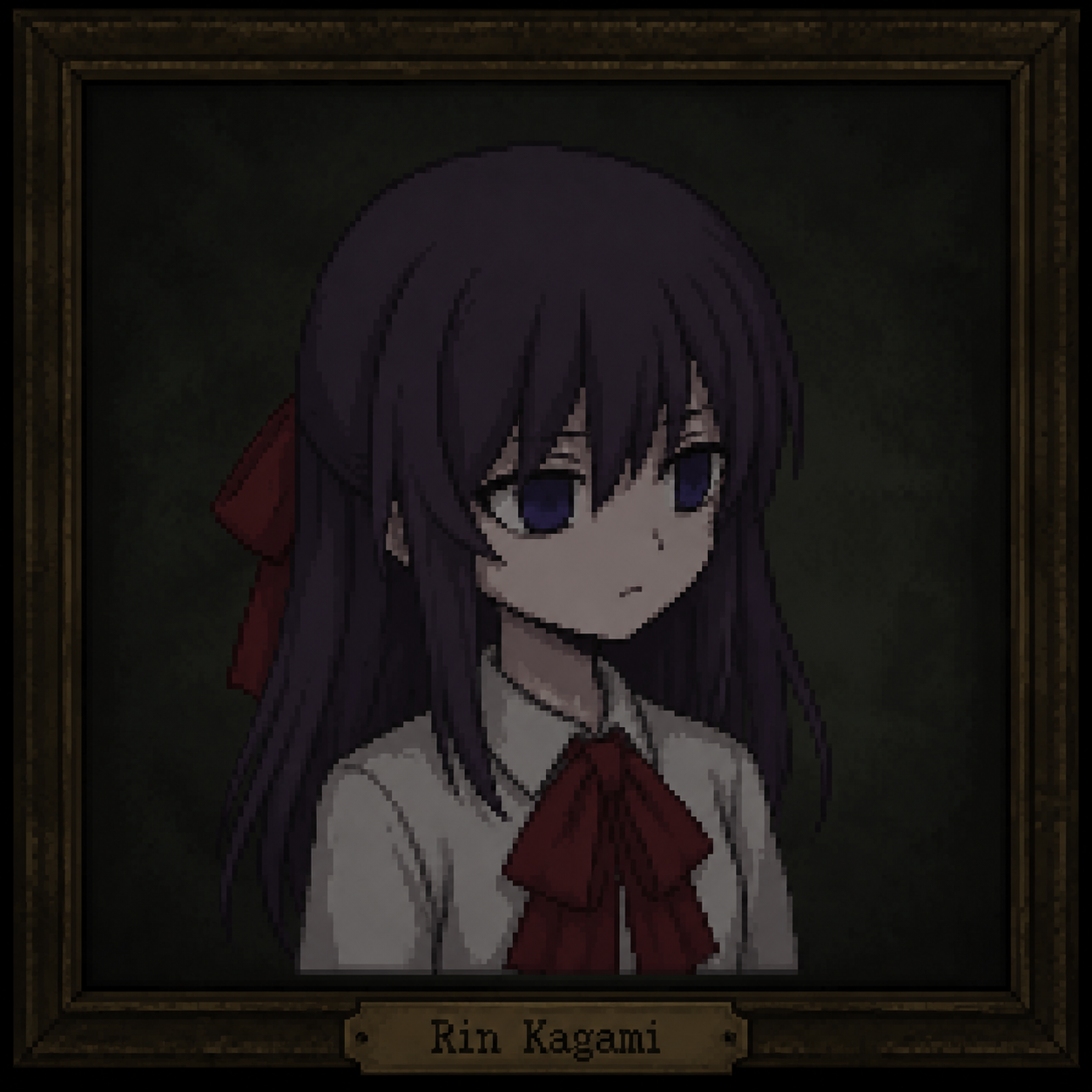
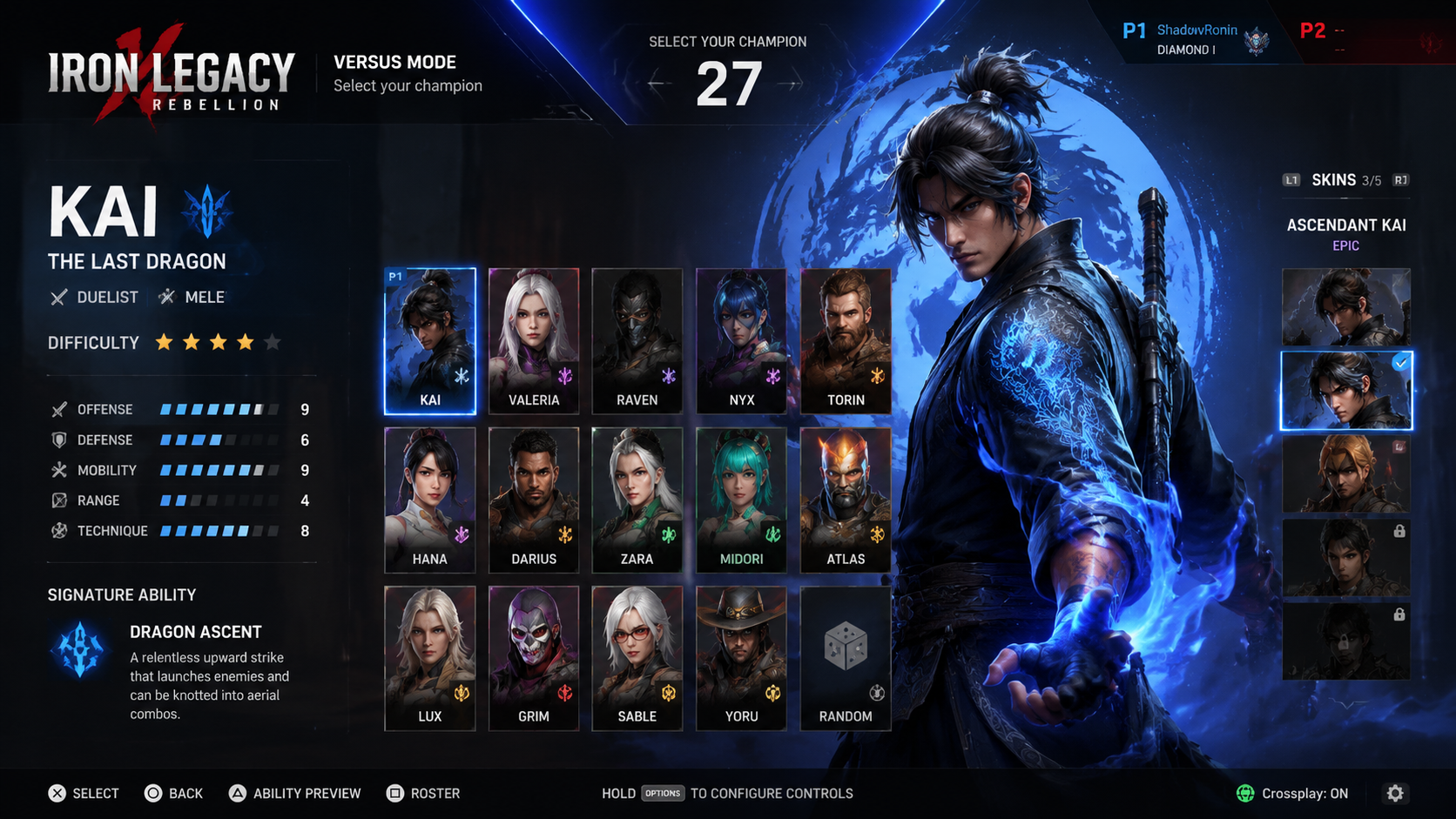
Restyle portraits, art, and screenshots.
More models
Switch engines without switching tools — GPT Image 2 plus the strongest public image and video models, side by side in the GPTImagine 2 studio.
 Muse VideoNewFlagship multimodal video with native audio
 Seedance 2.5HotMulti-reference Seedance with native audioSeedance 2.0Previous-gen Seedance up to 4KSeedance 2.0 FastFastFastest Seedance tier for drafts
 MiniMax H3Fast text/image to video up to 2KMiniMax H3 MaxHotReference-driven video consistency
 Veo 3.1Google’s cinematic drafting engine
 Wan 3.0Flexible duration and adaptive framing
 Kling 3.0Dramatic motion from a single prompt
 GPT Image 2.5NewSharp text and precise edits to 4KGPT Image 2Versatile image generation to 4KNano Banana 2.1NewFast drafts and precise edits to 4KNano Banana ProHotHigh-fidelity image output to 4KNano Banana 2Fast drafts and conversational editsNano Banana 2 LiteFastLightweight tier for quick, low-cost drafts
FAQ